Control Flow Actions
Wait Time Action

Pauses execution for a specified duration before continuing to the next action.
| Field | Description |
|---|---|
| Wait Time | Define the waiting time (in sec.) |
Wait All Async Actions

The Wait All Async Actions action waits until all the parallel actions end. It is used as an exit action.
| Field | Description |
|---|---|
| Timeout | Define the amount of time (in sec) before the On Timeout property is performed. |
| On Timeout | Define the action to be performed when the Timeout property expires: Continue = does not wait until all asynchronous actions stop; continues the procedure. Stop and Continue = waits until all asynchronous actions stop before continuing with the procedure. |
Stop All Async Actions

The Stop All Async Actions action stops all asynchronous actions that are executed in parallel.
Run Procedure

The Run Procedure action allows you to start another procedure. The Procedure must be in the same scene, and it is advisable to put this action in the last node because any subsequent action will be lost.
| Field | Description |
|---|---|
| Procedure | The procedure to start. Click the Open button to open it inside the procedure editor. |
| Mode | The execution mode in which you want to perform the next procedure. |
| Reset Scene | Reset the entire scene when launching the next procedure. |
End Procedure

The End Procedure action allows you to stop the current procedure at any time.
Set Variable

The Set Variable action creates or sets, if already existent, a variable according to the indicated value. All the Variables created in the scene and procedures are stored in the Variable tab.
| Field | Description |
|---|---|
| Variable | The name of the variable. |
| Value Type | The type of the variable. |
| Value | Set your variable. It depends on the type you choose. |
Set Variable from Object
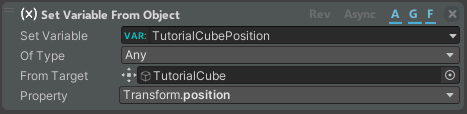
The Set Variable from Object action creates or sets, if already existent, a variable according to the status of an object in a scene. All the Variables created in the scene and procedures are stored in the Variable tab.
| Field | Description |
|---|---|
| Set Variable | The name of the variable. |
| Of Type | The type of the variable. |
| From Target | The object whose property you want to save in the variable. |
| Property | The property of the target object that you want to save. |
Set Button State

The Set Button State action allows you to set the state of a button of the procedure UI.
| Field | Description |
|---|---|
| Button ID | The button that you want to change. To manage the buttons inside this list, go to the Button tab in the Procedure Graph Toolbar. |
| Is Visible | If enabled, the button will be visible inside the procedure UI. |
| Is Enabled | If enabled, you can use the button inside the procedure UI. |
Manage Event

The Manage Event action lets you control an Event node inside your procedure.
| Field | Description |
|---|---|
| Action | Whether you want to restart, start, and continue or stop the event. |
| Event Node | The event node that you want to manage. |
Manage Selection

The Manage Selection action allows you to select an object inside your procedure. It needs a working Selection Node inside the procedure.
| Field | Description |
|---|---|
| Selection Node | The selection node whose selection you want to change. |
| Select | What you want to select: None = no object. Previous/Next = the previous/next object of your selection node item list. Index = the object that has this index inside the selection node item list will be selected. Object = the set object will be selected. |
| Value | Changes depending on the previous property. |
Raise Event

The Raise Event action allows you to raise an event from the list of the Procedure Events.
| Field | Description |
|---|---|
| Raise Event | The event that you want to raise. To create an event for this list, go to the Event tab inside the Procedure Graph. |
To create events available in this list, go to the Event tab inside the Procedure Graph.
Set UI Player Component State

The Set UI Player Component State action can manage the state of visibility and interoperability of the UI Player components.
| Field | Description |
|---|---|
| Component Game Object | The UI player component that you want to change state. Go to the Player tab in the Procedure Graph Toolbar to look at the components inside this list. |
| Is Visible | If enabled, the UI component is visible. |
| Is Interactable | If enabled, the UI component is interactable. |
Random Value
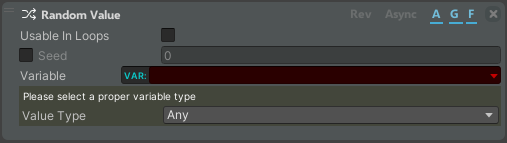
The Random Value generates a random variable of chosen type.
| Field | Description |
|---|---|
| Usable in loops | Enable the possibility to regenerate the value if the Action is inside a loop cycle or an Event Node flow. |
| Seed | Whether to use a known seed or a random one. |
| Variable | The variable where the generated value will be saved. |
| Value Type | The type of the generated value. Depending on the type of value, different parameters will be displayed that can be customized. |
Commit Error

This action allows you to force the execution of an error.
| Field | Description |
|---|---|
| Mode | The execution mode. |
| Error | The error to check. |