PC and Mobile
Login
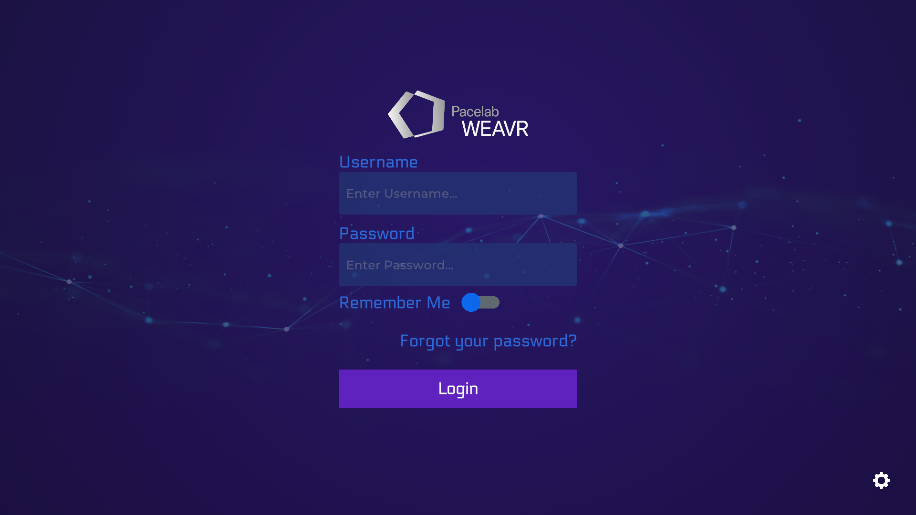
After installing and launching the application, the log-in page will appear. You need to log-in to use the WEAVR Player.
If the log-in is successful, you'll see the Library Page which is the main page of the WEAVR Player, here you can find all your assigned procedures.
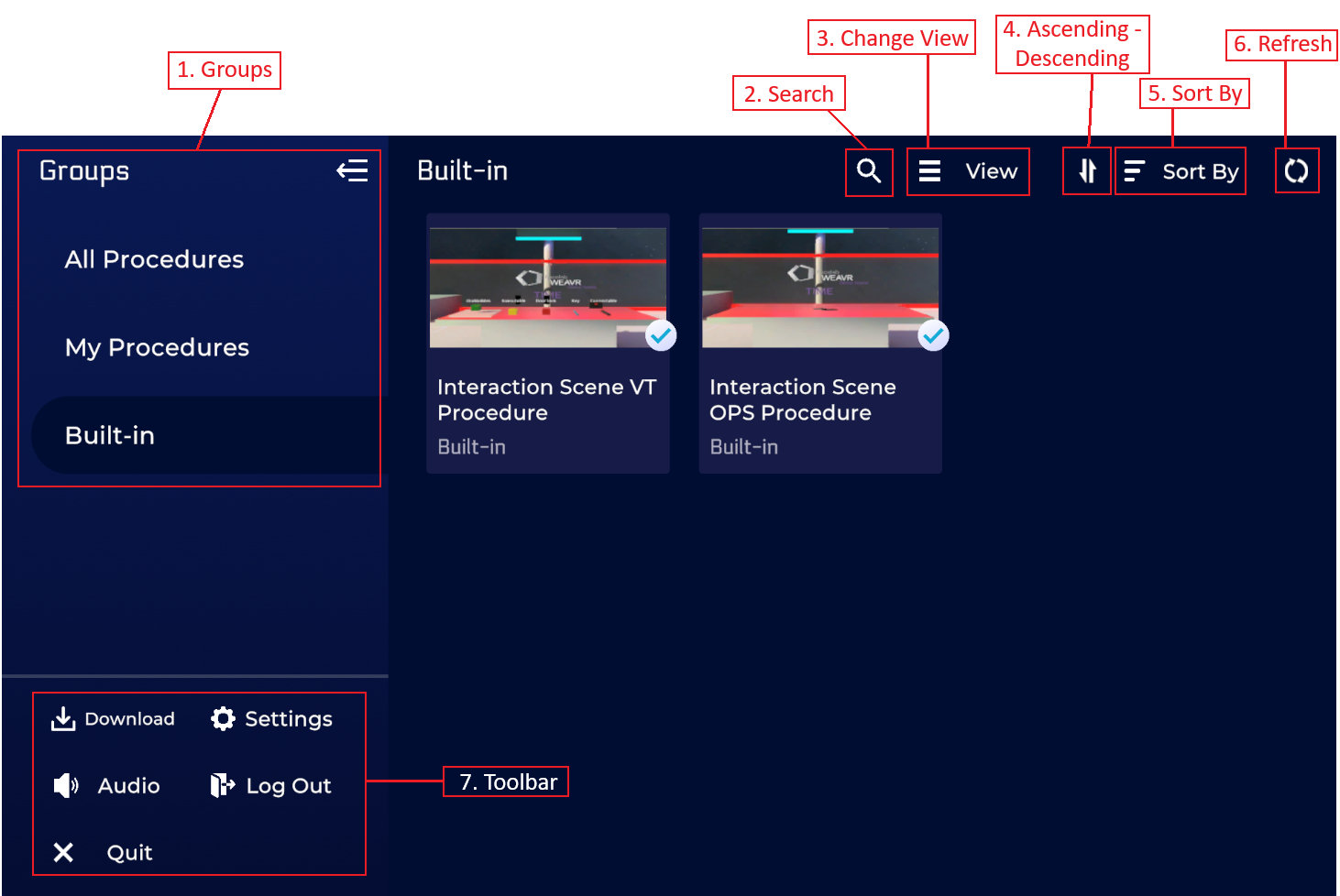
In the toolbar in the top part of the screen you have a search button, you can change the view mode (Grid or List), invert the order, sort the procedures, and refresh the library.
Running a Procedure
You need to download the procedure first (you'll see a button on the procedure) and then by clicking on it you'll see the Procedure Details Window.
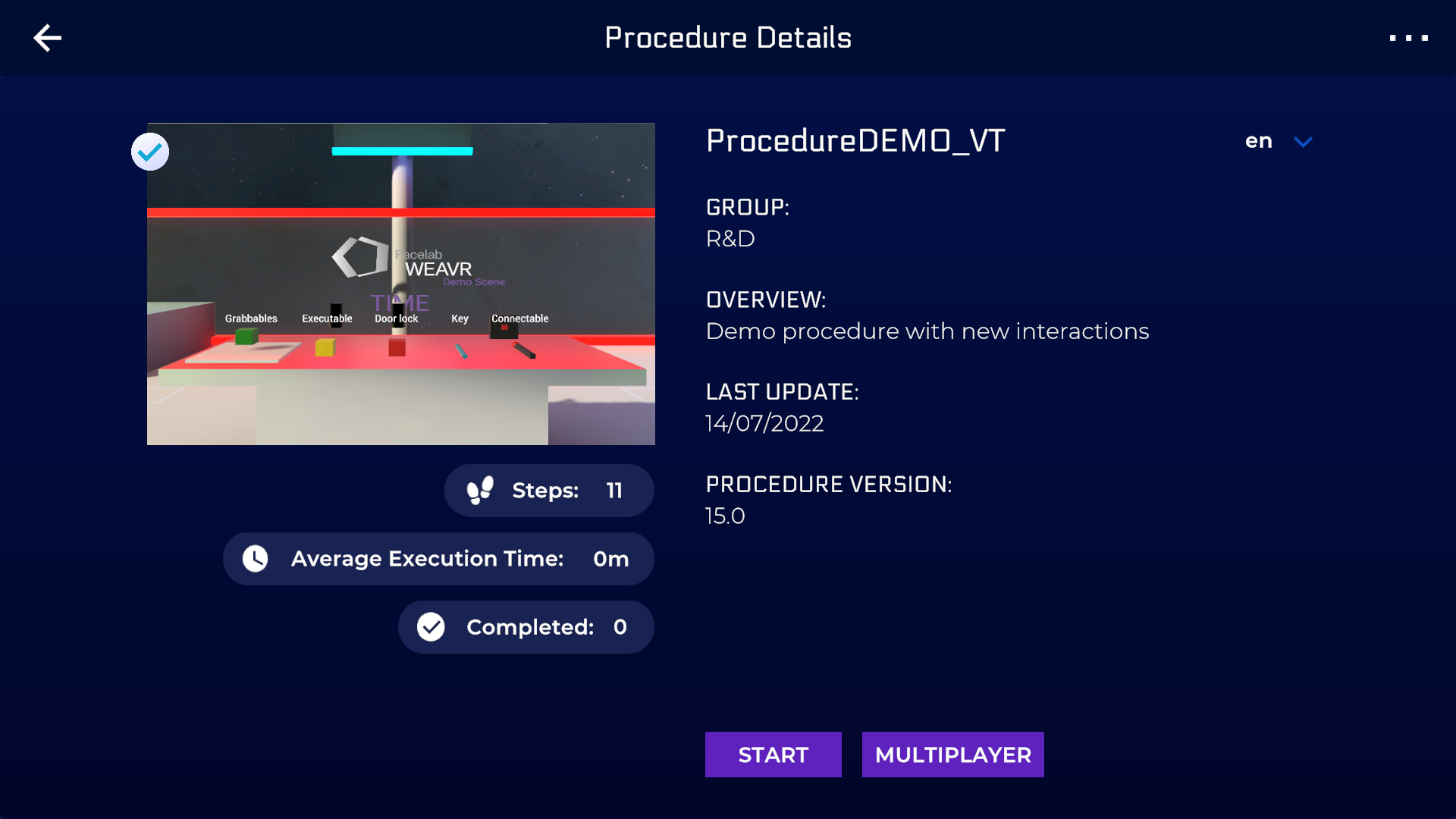
In this window you've detailed info about your procedure such as the number of Steps, the average execution time, or the procedure version. Here you can also change the procedure's language.
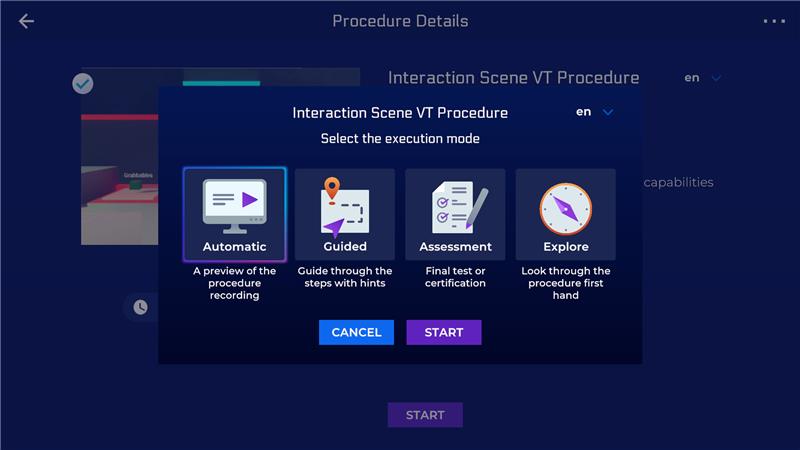
Click on the Start button to start the procedure in Single Player mode, a pop-up will show up to let you decide the execution mode.
Multiplayer
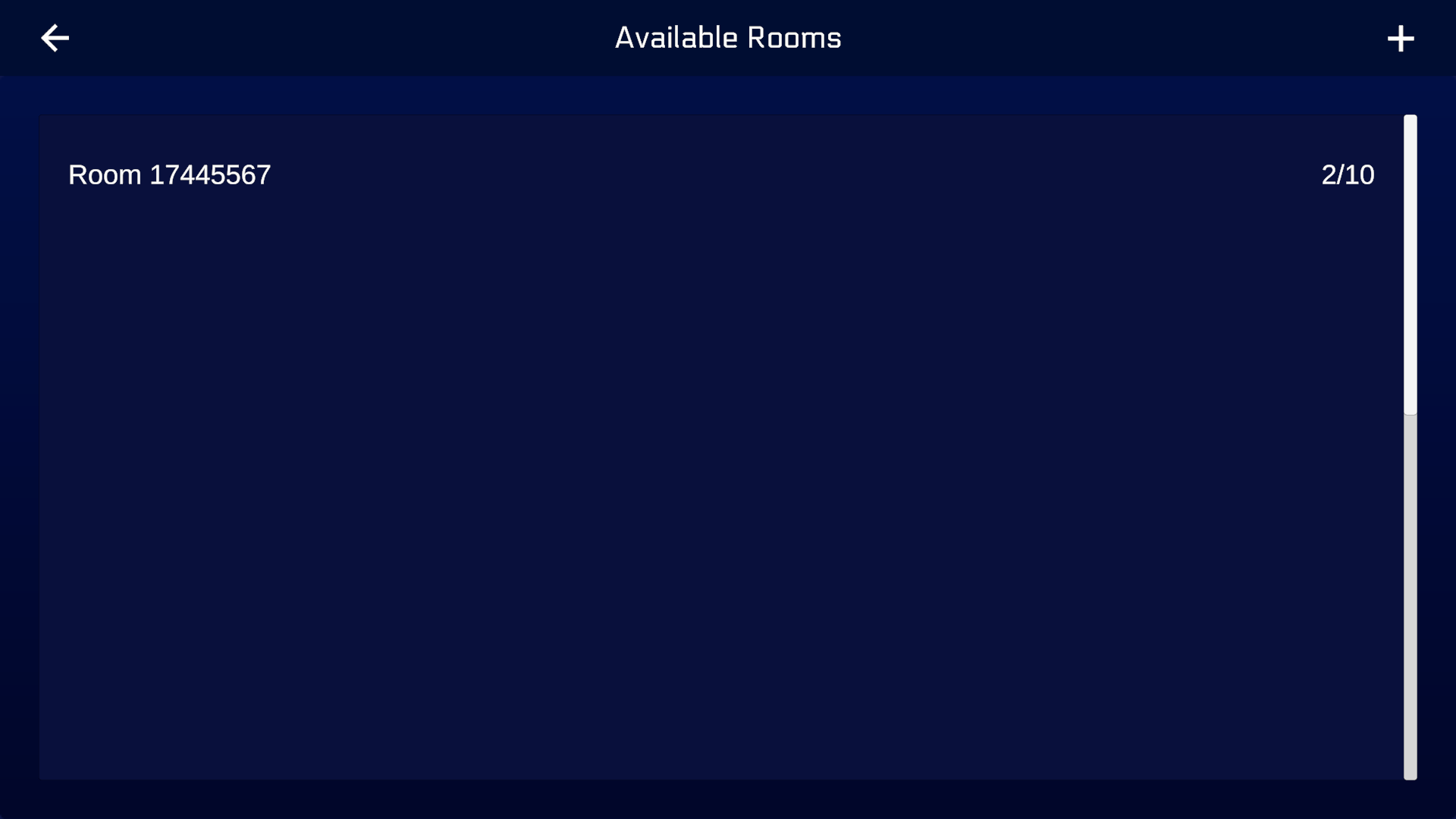
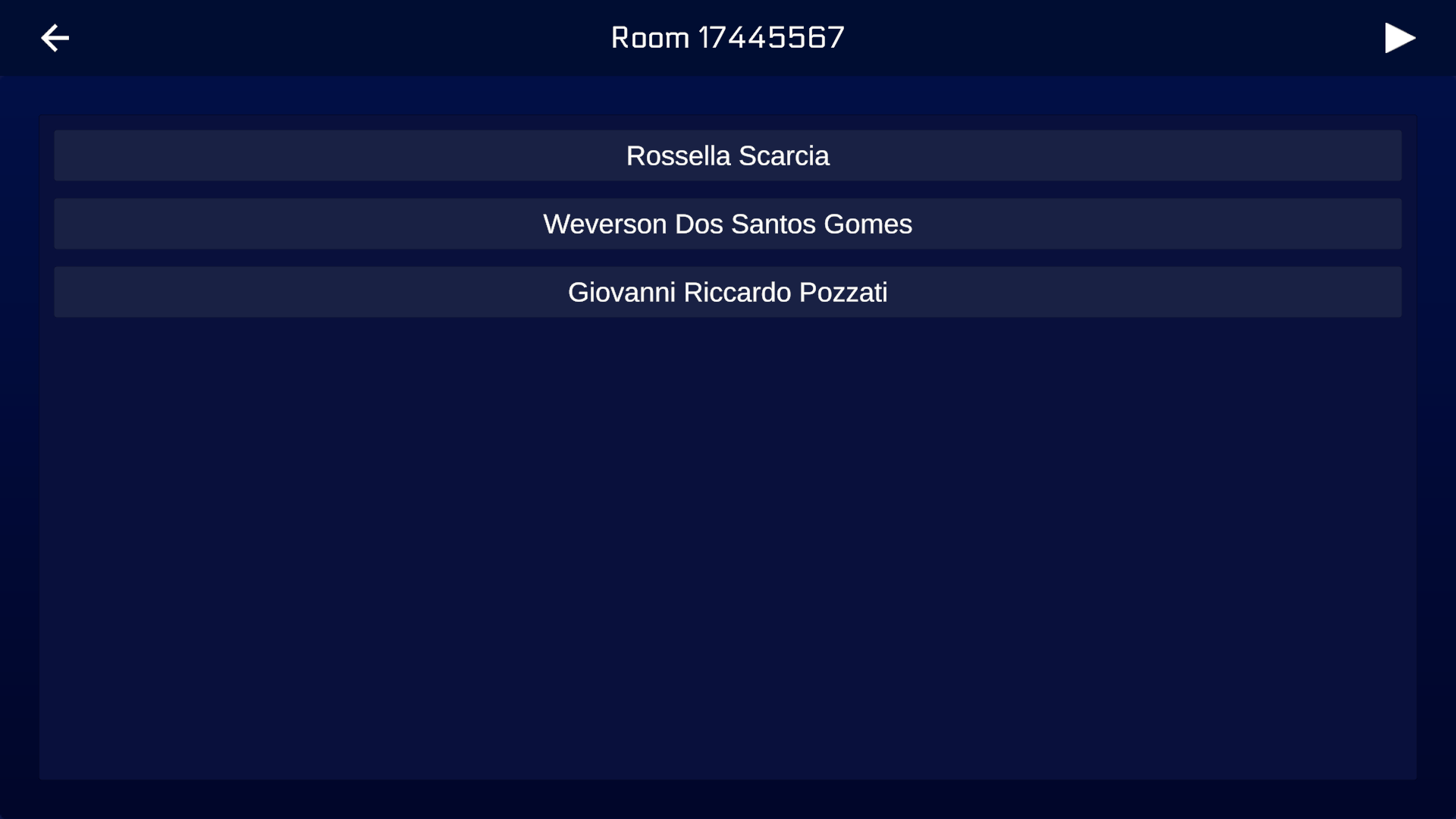
If you click on the Multiplayer button instead, you'll be able to play the same procedure in Multiplayer mode. Choose an existing room from the list or create a new one with the [+] button, then click the Play button. If your procedure has more than one execution mode, a pop-up will show up to select the mode, then you can start the procedure.
4.2.1 Procedure UI
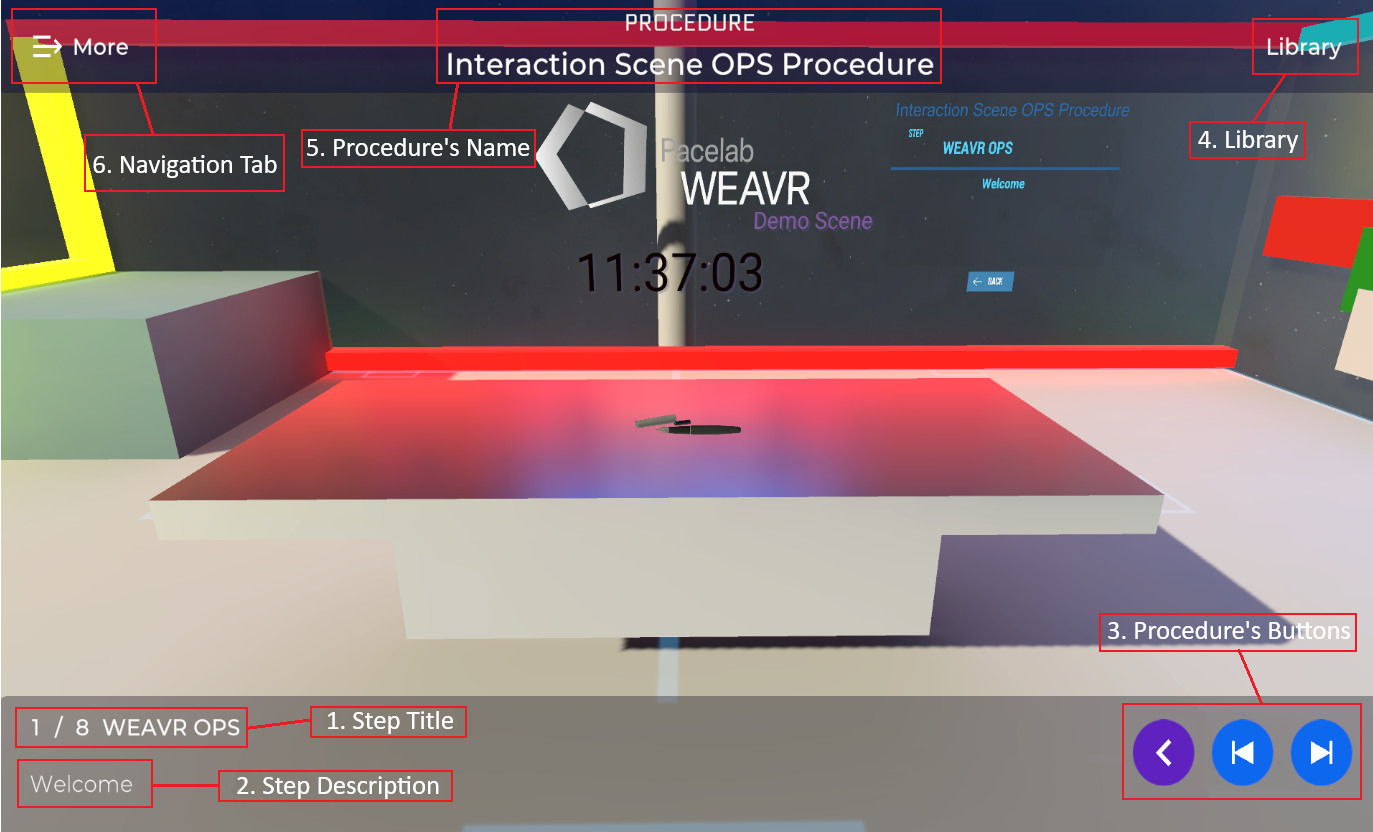
| Element | Description |
|---|---|
| Step Title | The step title. |
| Step Description | The step description. |
| Procedure's Button | Available only for OpS Procedure, allows you to move through the procedure's step and do special actions as freeze the camera or take notes (you need to enable these functionalities when creating the procedure). |
| Library | Click here if you want to go back to the Library page. |
| Procedure's Name | The procedure's title. |
| Navigation Tab | Here you can find all the procedure's step and navigate through them and the list of players if you're in a Multiplayer scene. |
PC Controls
To move inside a VT Procedure, if you are on PC:
- Use WASD to move around
- Move the mouse to look around
- Left click to interact with objects, keep pressed to throw them
- Right click to view the related commands
Mobile Controls (Android)
If you're on an Android device such as a Tablet or Phone:
- Use the two joysticks to move around the scene
- Point the objects with the cursor (the purple dot in the center of the screen) and choose the interaction you want to perform
- Keep pressed on the object to throw it
AR Mode
On Android devices, if you enable it when creating the procedure, you can use AR Mode. This functionality varies depending on the context, object and device used:
- It can be static, which overlays the object (although semi-transparent) over what the device's camera sees.
- It can also be dynamic where the device scans the physical environment for a good placement for the object, and once placed, the object can be interacted with, and the user is free to move around the object.