Object Conditions
The Object group contains the following conditions:
- Distance Between Objects
- Object is in Area
- Object is Active
- Object is Visible by Camera
- Visually Inspect
- Simple Visual Inspection
- Button is Pressed
- Integrity Check
Distance Between Objects
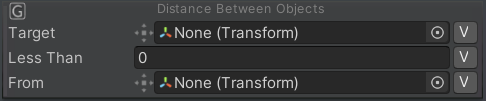
The Distance Between Objects exit condition checks the distance between two object transforms.
| Property | Function |
|---|---|
| Target | Define the object A from which start calculating the distance. |
| Less Than | Define the maximum distance between the two objects to make the condition true. |
| From | Define the object B to which calculate the distance. |
Object is in Area
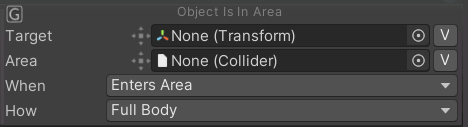
The Object Is in Area exit condition becomes true if the target object is in the referenced area (Collider).
| Property | Function |
|---|---|
| Target | Define the object that should be in the area. |
| Area | Define the area to check against (collider). |
| When | Select when to trigger the condition: Enters Area or Leaves Area. |
| How | Select what to check to consider the condition true: Pivot = pivot point of the target. Bounding Box = bounding box of the target intersects the area. Full Body = full body of the target is inside the area. |
Object is Active

The Object Is Active exit condition checks if the target object is/is not active in hierarchy.
| Property | Function |
|---|---|
| Target | Define the object to check. |
| Is Active | If enabled, checks if the object is active. |
Object is Visible by Camera
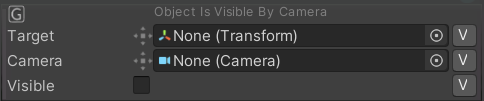
The Object Is Visible by Camera condition is true if the target object is/is not visible by the indicated camera.
| Property | Function |
|---|---|
| Target | Define the object to check. |
| Camera | The camera that should see the object. Otherwise, all cameras in the scenes are checked. |
| Visible | If enabled, checks if the object is visible. |
Visually Inspect
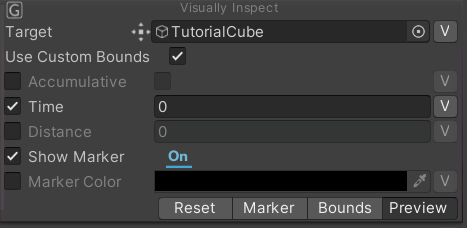
The Visually Inspect condition becomes true if the target is visualized by the defined camera according to the indicated time and distance.
| Property | Function |
|---|---|
| Target | Define the object to be inspected from the player. |
| Use Custom Bounds | If enabled, the inspection marker can be customized according to the preferred position and dimension; otherwise, the inspector marker depends on the Target bounding box center and dimensions. Sub-options when enabled: Preview = if enabled, the inspector marker is visualized in the scene. Marker = if enabled, the inspector marker can be moved to the desired position and scaled directly from the scene. Furthermore, the inspection distance can be modified from the scene according to the radius of the sphere that is visualized around the Target. Bounds = if enabled, the inspector bounds can be edited inside the scene. Reset = if enabled, the position of the inspector marker is set to the center of the Target. |
| Accumulative | If enabled, the inspection time is not reset to zero when the visual inspection is lost before the minimum time set. |
| Time | Define the required inspection time. |
| Distance | Define the minimum distance from the Inspector camera to the center of the Target. |
| Show Marker | If enabled, the inspector marker is showed according to the highlighted procedure mode. |
| Marker Color | If enabled, allows selecting the Inspector Marker color. |
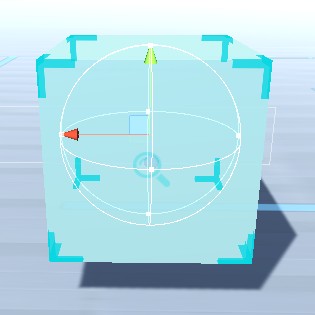
Simple Visual Inspection
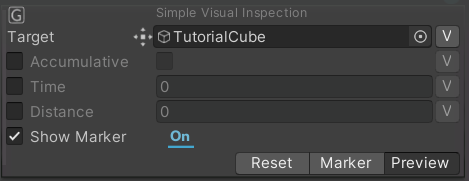
The Simple Visual Inspection is a simplified version of the Visually Inspect condition. This condition is true if the target is visualized by the defined camera according to the indicated time and distance.
| Property | Function |
|---|---|
| Target | Define the object to be inspected from the player. |
| Accumulative | If enabled, the inspection time is not reset to zero when the visual inspection is lost before the minimum time set. |
| Time | Define the required inspection time. |
| Distance | Define the minimum distance from the Inspector camera to the center of the Target. |
| Show Marker | If enabled, the inspector marker is showed according to the highlighted procedure mode. |
| Preview | Shows a preview of the inspector marker inside the scene. |
| Marker | Allows to edit the marker position inside the scene. |
| Reset | Reset the position of the marker. |
Button is Pressed

The Button Is Pressed condition becomes true when you press the target Unity Button.
| Property | Function |
|---|---|
| Is Pressed | Define the button to be checked. |
| Instant Check | If enabled, the On Click event should be triggered more than once. |
Integrity Check
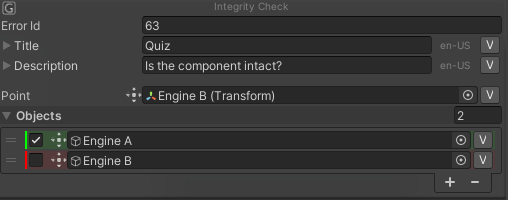
The Integrity Check condition allows you to create a quiz-like question using different objects as the answer. During the procedure, in the step where the condition is present, a billboard with the indicated question will be displayed.
| Property | Function |
|---|---|
| Error Id | ID of the related error inside the Score System. |
| Title | Billboard's quiz title. |
| Description | Question. |
| Point | Point where the billboard will appear. |
| Objects | Answer's objects. The checked one is the correct answer. |
Example: Consider a car engine scenario. To ask the user whether the oil tank is placed correctly or not, put the GameObject of the oil cap in the Objects list and check it to indicate it as the correct answer. During the procedure, the object will be randomly enabled or disabled.